Retrieving vector data and metadata
In this section we will learn how to deal with vector data using WFS. First we will learn how to deal with metadata and then how to retrieve the features. We will be using the layer named Counties in the workshop namespace.
Note
The Open Geospatial Consortium Web Feature Service Interface Standard (WFS) provides an interface allowing requests for geographical features across the web using platform-independent calls. One can think of geographical features as the “source code” behind a map, whereas the WMS interface or online mapping portals like Google Maps return only an image, which end-users cannot edit or spatially analyze.
Navigate to the GeoServer Welcome Page.
On the Welcome page locate the Layer Preview link (no need to login).
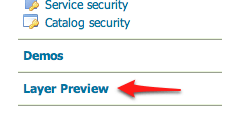
Layer Preview
Navigate to the WFS GML output of the Counties layer.
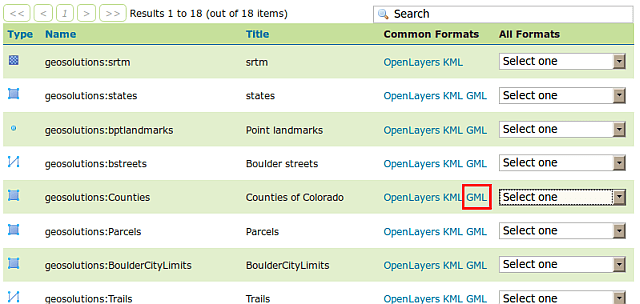
WFS GML output
Depending on the browser, the output may be unformatted or recognized as XML. Here is what Firefox 3 shows: http://localhost:8083/geoserver/ows?service=WFS&version=1.0.0&request=GetFeature&typeName=geosolutions:Counties&maxFeatures=50&outputFormat=GML2
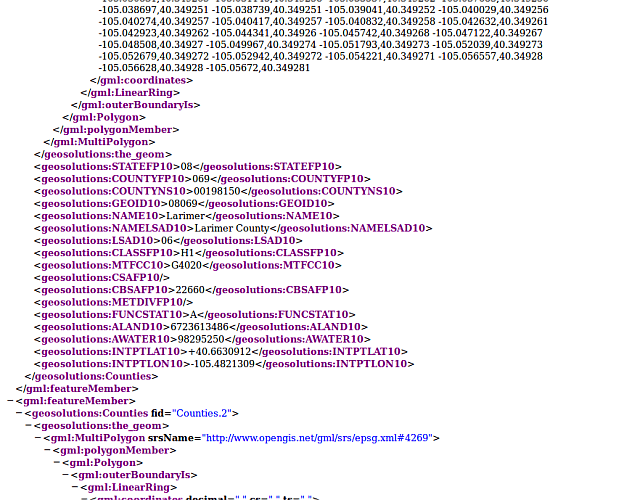
Default WFS layer preview.
Note
We recommend the Mozilla Firefox web browser for navigating WFS response documents.
Now that we know the quick and easy way to get WFS data, let’s go back and do it the way a standard WFS client works. First, the only thing expected to be known is the WFS server URL: http://localhost:8083/geoserver/ows?service=WFS&version=1.0.0
Using that URL, we can issue a
GetCapabilitiesrequest in order to know which layer it contains and what operations are supported: http://localhost:8083/geoserver/ows?service=WFS&version=1.0.0&request=GetCapabilities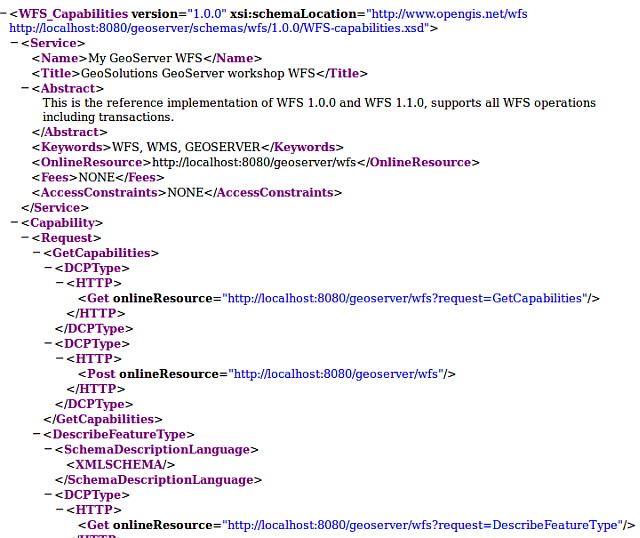
GetCapabilities response
If we scroll below, we will find the
Countiesfeature type described: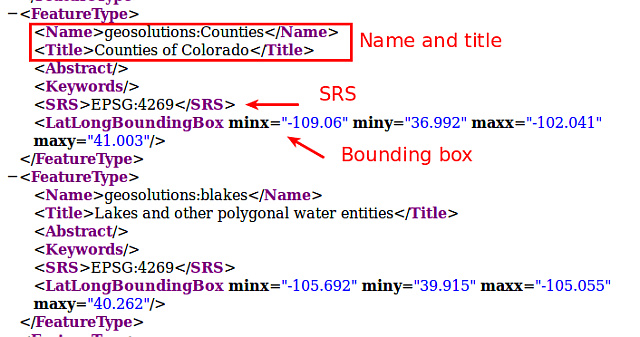
GetCapabilities response (
Countiesfeature type)- Now let’s request more information for the
Countieslayer using aDescribeFeatureTyperequest:
Which gives us information about the fields names and types as well as the geometry type, in this case
MultiPolygon.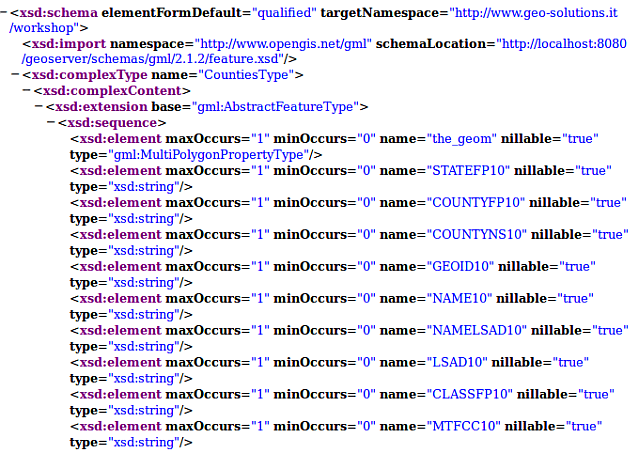
DescribeFeatureType response for Counties feature type
- Now let’s request more information for the
After that, we can issue a basic
GetFeaturerequest, that looks like this:http://localhost:8083/geoserver/ows?service=WFS&version=1.0.0&request=GetFeature&typeName=geosolutions:Counties&featureId=Counties.1
Note
Notice it’s almost the same as the one that Geoserver generated, but it’s requestin a single feature specifying its identifier via
featureId=Counties.1In the next section we will see how to filter the WFS output based on various attributes.