Modifying Feature Types
GeoServer provides a fully Transactional Web Feature Service (WFS-T) which enables users to insert/delete/modify the available FeatureTypes. This section shows a few of the GeoServer WFS-T capabilities and interactions with GIS clients.
Modifying Feature Types using GeoNode
Open your instance of GeoNode and log in as a superuser or a user having write rights on at least some Layers

GeoNode Layers
Select a Layer on which when you have right to edit data
Warning
You can edit only Layers which have been stored on a JDBC DataStore, like a DataBase. On GeoNode this is only possible if the
DB datastorehas been enabled from thesettings.
GeoNode Layer Select
Click on Edit Layer and then, from the pop-up window, click on Edit data
Warning
The Edit data button will be available only for writable Layers (see above).

GeoNode Edit Layer
When the Map shows up along with your Layer, zoom in to a region you want to update or create.
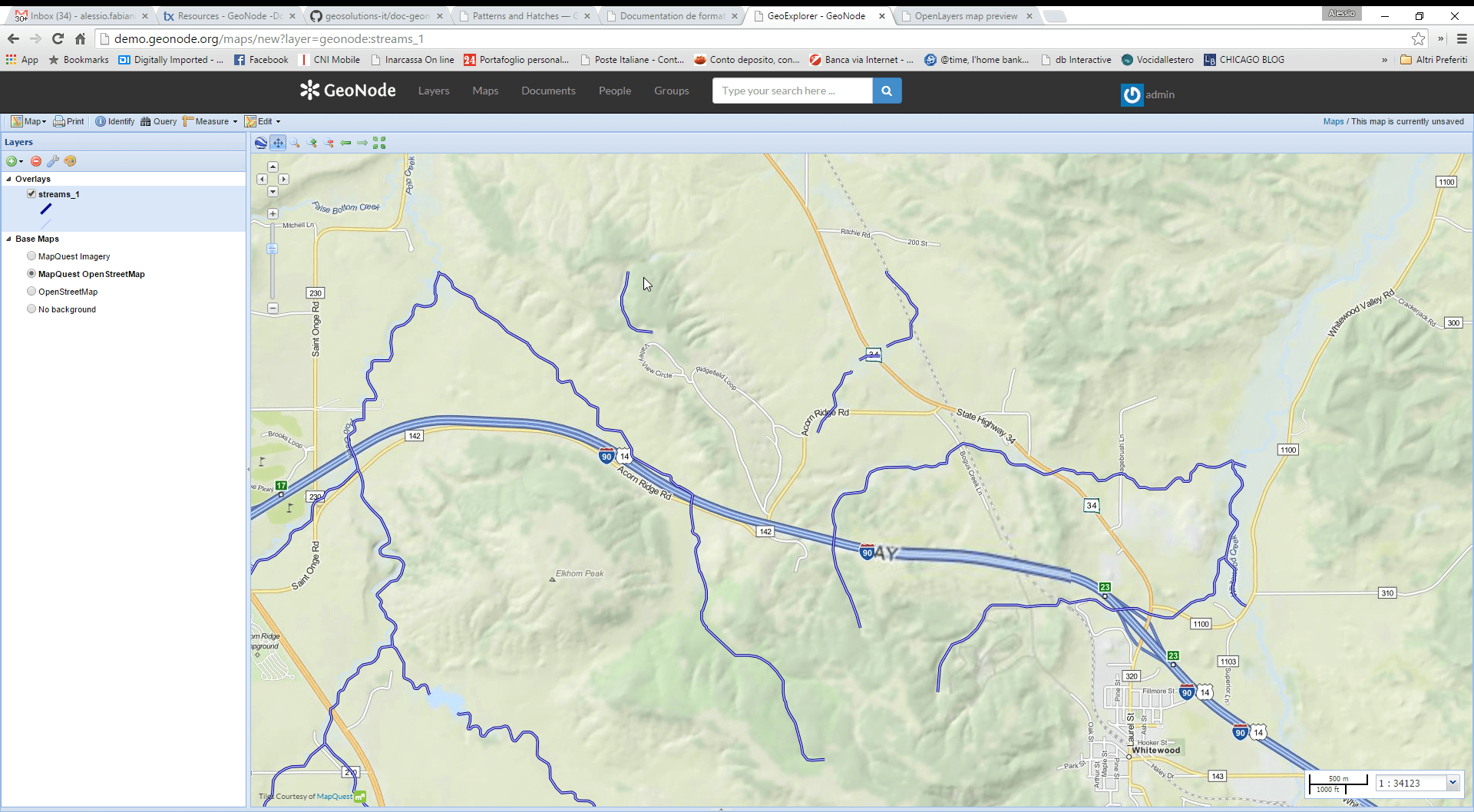
GeoNode Navigate Layer
Identify the Edit button on the map top toolbar, click on the small arrow on the left in order to show up the context menu.
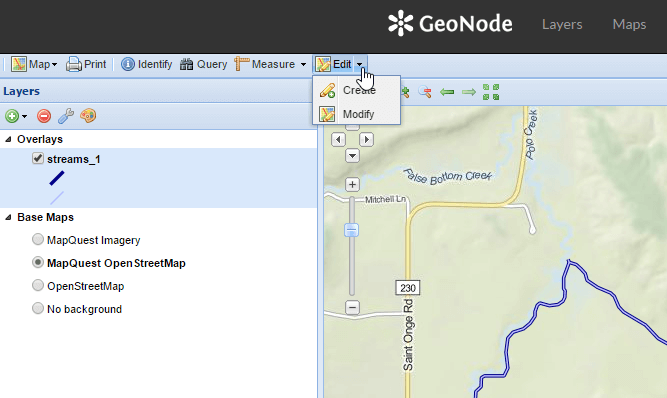
GeoNode Edit Button
Lets first Modify a FeatureType. Click on Modify.
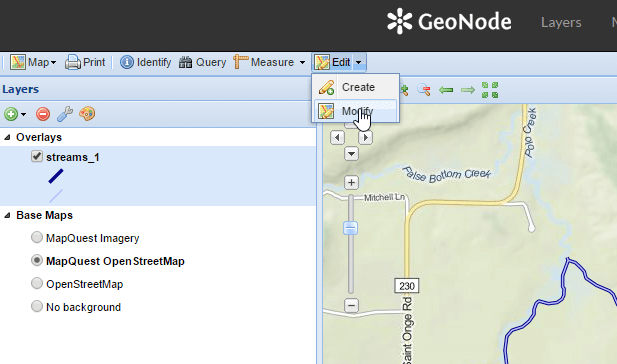
GeoNode Modify FeatureType
Select a geometry and click over it. From the small info dialog window, select Edit

GeoNode Editing a FeatureType
Modify the geometry and/or the values of the field as you wish, and then click on Save.
Hint
If you want you can also completely delete the FeatureType by clicking on the Delete button from the same info dialog window.

GeoNode Updating a FeatureType
Verify that the changes have been stored on GeoServer.
Replace the URL
http://your_host/maps/new?layer=geonode:streams_1
with
http://your_host/geoserver/wms/reflect?layers=geonode:streams_1
Warning
Pay attention to the parameter:
layerbecomeslayers, plural. If you want you can also add an output format parameter, likeformat=openlayers. In that case the complete URL becomes:http://your_host/geoserver/wms/reflect?layers=geonode:streams_1&format=openlayers

GeoServer Displaying the Updated Layer
Click over the FeautreType in order to display the updates values too.
Repeat the FeatureType editing but this time click on Create (or simply click over the Edit button and not on its right small arrow).
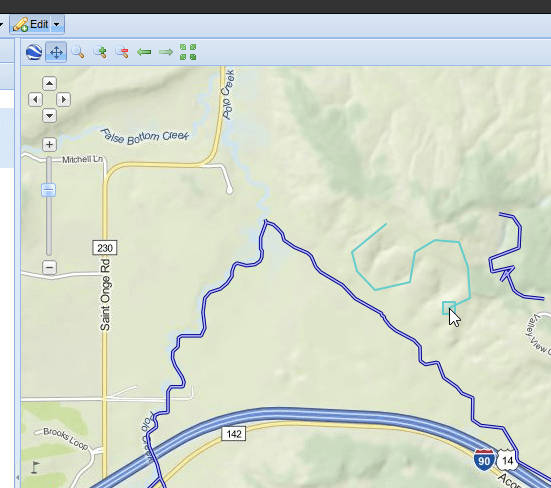
GeoNode Creating a FeatureType
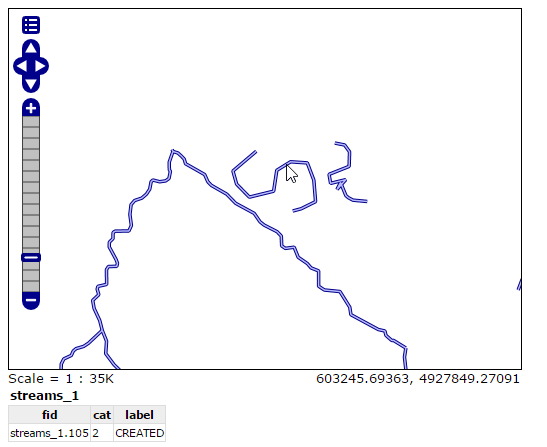
GeoServer Displaying the New Feature
Modifying Feature Types using a Desktop GIS client
Open uDig GIS desktop client by going on the command line, changing directory in the training root if necessary, and running the
udigcommand.Add GeoServer WFS to the catalog.
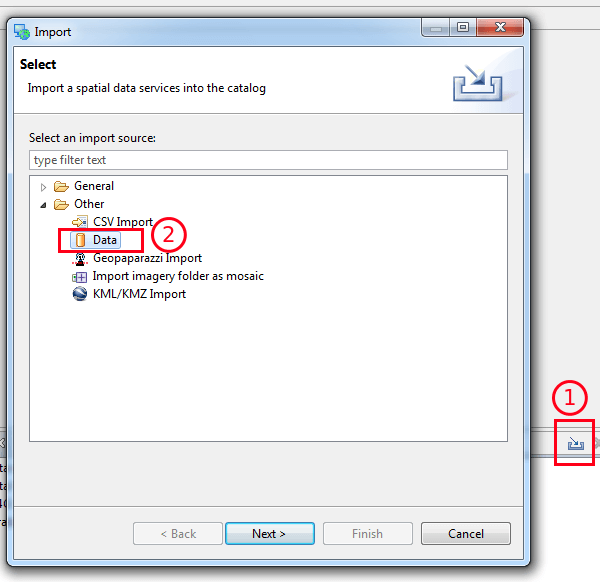
Use the import button in the catalog tab, and select “data” in the first page of the wizard
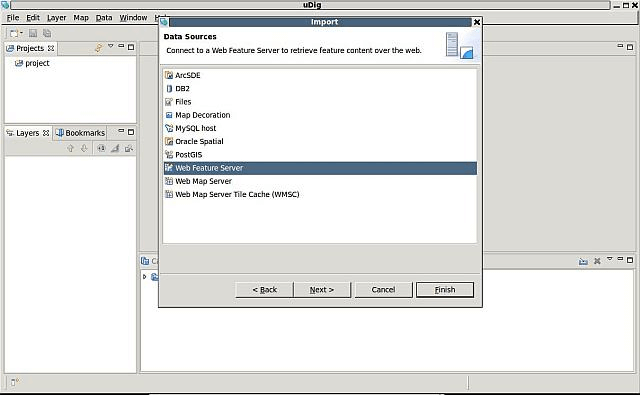
Selection of Web Feature Service data
Insert into the URL text box the following address:
http://localhost:8083/geoserver/wfs?request=GetCapabilities&service=WFS

The WFS URL
Select the Mainrd from the list

WFS Datasets shown into the uDig catalog
Load the Mainrd Feature Type using drag-n-drop.

Importing Mainrd into the map
Perform a zoom operation on the upper-right part of the layer.

Zooming in …
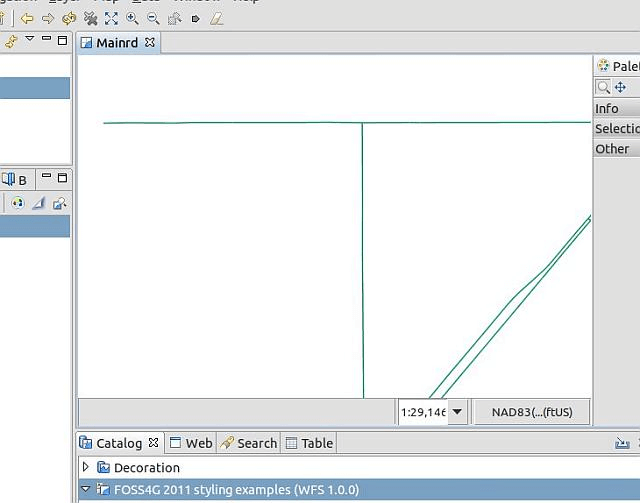
Zooming in …
By using the Select and Edit Geometry tool try to move/add/remove some vertex to the small line at the center of the screen.
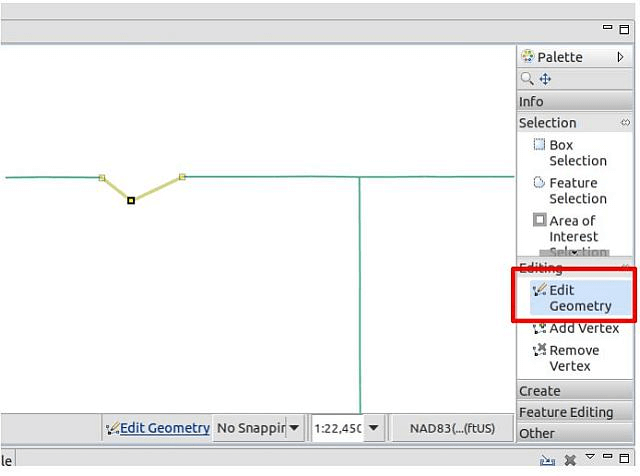
Playing with the Geometry
Once finished use the Commit tool to persist the changes on GeoServer.

Committing changes throught the WFS-T protocol
Use GeoServer Layer Preview to view the changes on the Mainrd layer.
Warning
In order to view the streets lines you have to specify the line style on the GetMap request.
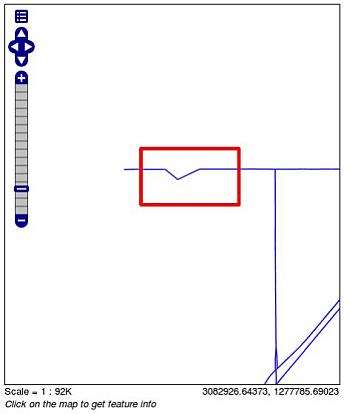
Showing the changes to the Mainrd Feature Type
On uDig look the Feature attribute values using the Info tool.
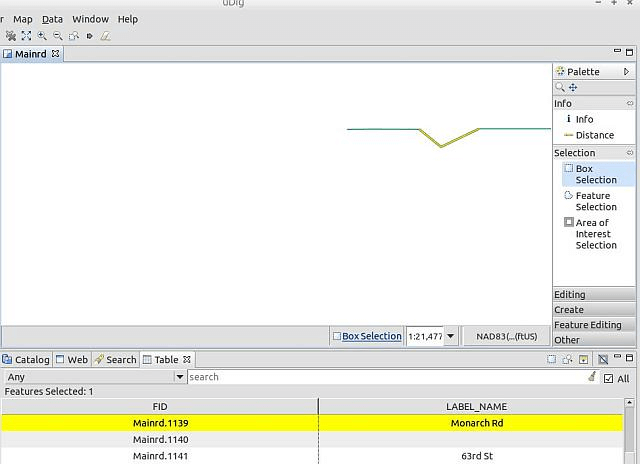
Retrieving Feature Type info from uDig interface
Now open/create the
request.xmlfile in the training root directory and set in the following request, which will be used to issue an Update Feature type request to the WFS-T updating all roads labelled asMonarch RdtoMonarch Road<wfs:Transaction xmlns:topp="http://www.openplans.org/topp" xmlns:ogc="http://www.opengis.net/ogc" xmlns:wfs="http://www.opengis.net/wfs" service="WFS" version="1.0.0"> <wfs:Update typeName="geosolutions:Mainrd"> <wfs:Property> <wfs:Name>LABEL_NAME</wfs:Name> <wfs:Value>Monarch Road</wfs:Value> </wfs:Property> <ogc:Filter> <ogc:PropertyIsEqualTo> <ogc:PropertyName>LABEL_NAME</ogc:PropertyName> <ogc:Literal>Monarch Rd</ogc:Literal> </ogc:PropertyIsEqualTo> </ogc:Filter> </wfs:Update> </wfs:Transaction>
Issue the WFS-T request towards GeoServer using curl on the command line:
curl -XPOST -d @request.xml -H "Content-type: application/xml" "http://localhost:8083/geoserver/ows"
The response should be a TransactionResponse XML document containing a
wfs:SUCCESSelementAsk the info again using the uDig Info tool …
Note
In order to issue a GetFeatureInfo request from the OpenLayers MapPreview tool, just left-click over the line.
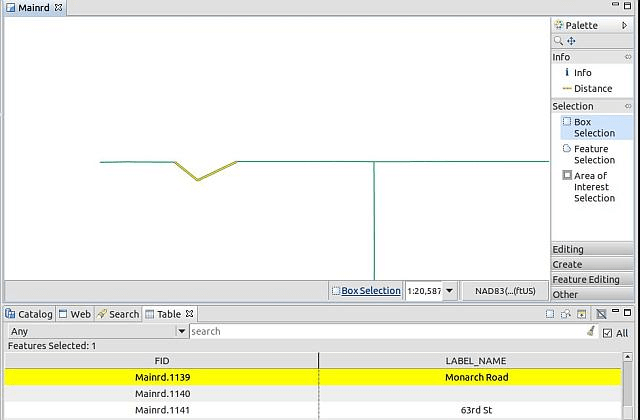
Obtaining the updated Feature Type info from uDig interface
Finally, obtain the Feature type info using the GetFeatureInfo operation issued directly by the Map Preview .
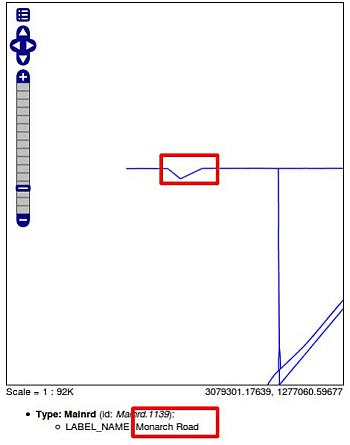
Obtaining the updated Feature Type info from OpenLayers MapPreview GetFeatureInfo