Styling layers
In this interface, we can pause in our map creation and change the style of one of our uploaded layers. GeoNode allows you to edit layer styles graphically, without the need to resort to programming or requiring a technical background.
We’ll be editing the san_andres_y_providencia_poi layer.
In the layer list, uncheck all of the layers except the above, so that only this one is visible (not including the base layer).
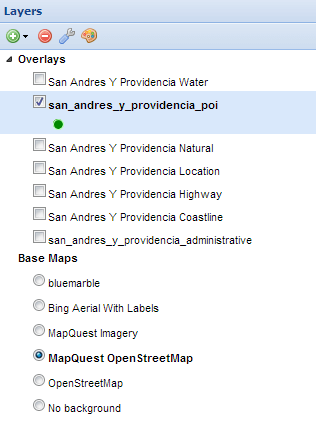
Only one layer visible
Zoom in closer using the toolbar or the mouse.
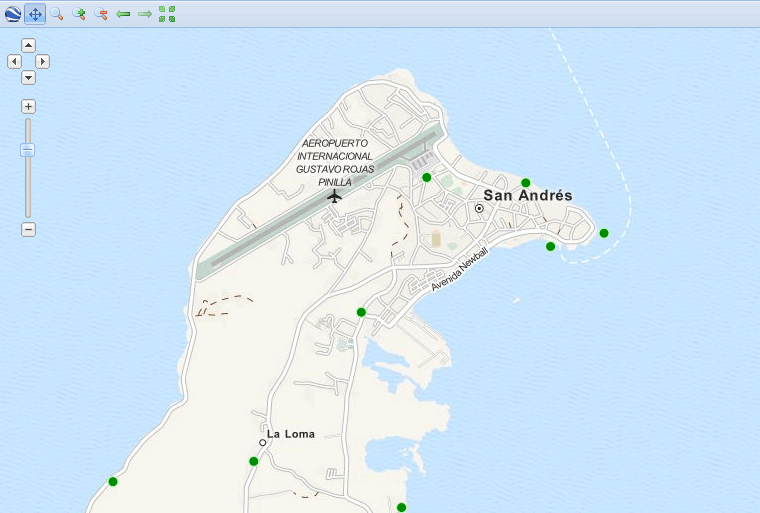
Zoomed in to see the layer better
In the layer list, click to select the remaining layer and then click the palette icon (Layer Styles). This will bring up the style manager.
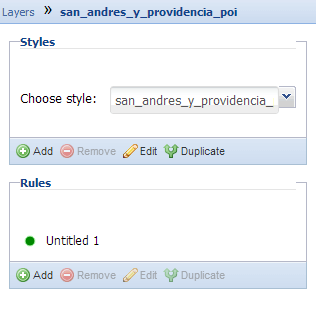
Styles manager
This layer has one style (named the same as the layer) and one rule in that style. Click the rule (Untitled 1) to select it, and then click on Edit below it.
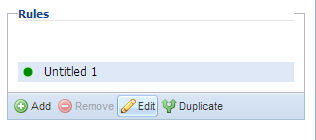
Edit style rule link
Edit the style. You can choose from simple shapes, add labels, and even adjust the look of the points based on attribute values and scale.
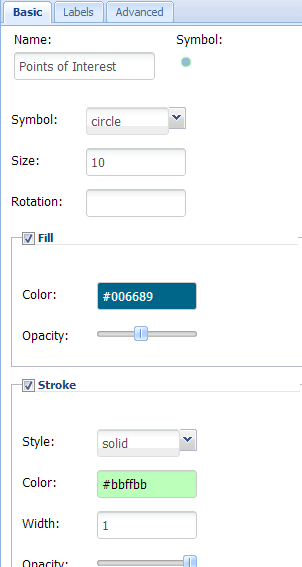
Editing basic style rules
Editing style labels
When done, click Save, then click on the word Layers to return to the layer list.
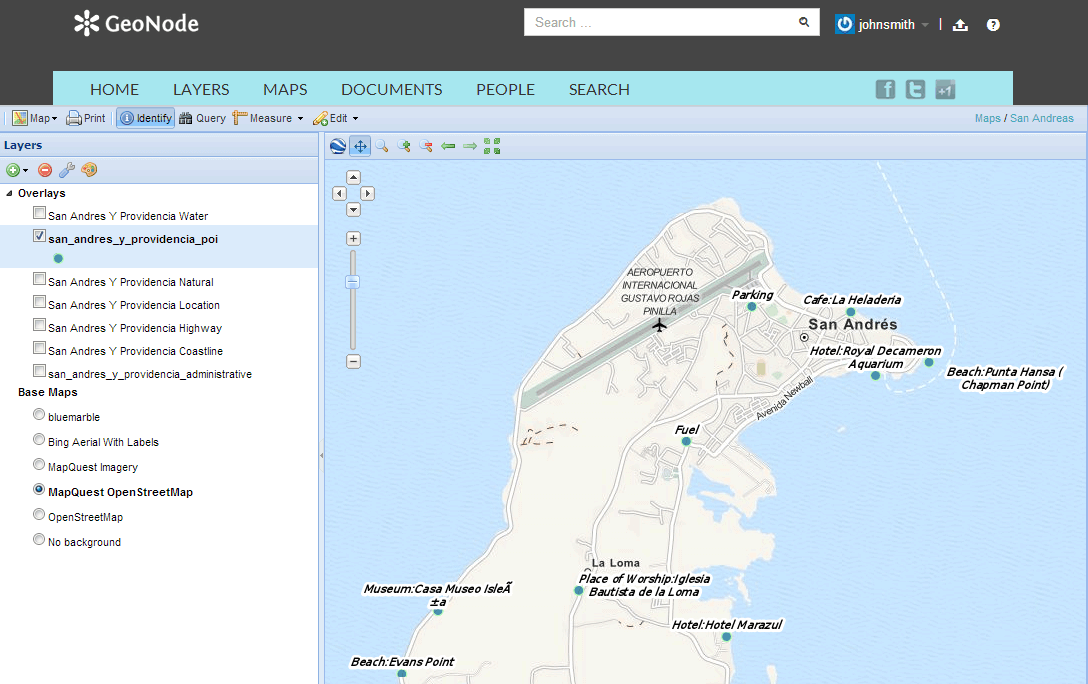
Styled layer