Docker installation and setup
Docker is a free software platform used for packaging software into standardized units for development, shipment and deployment.
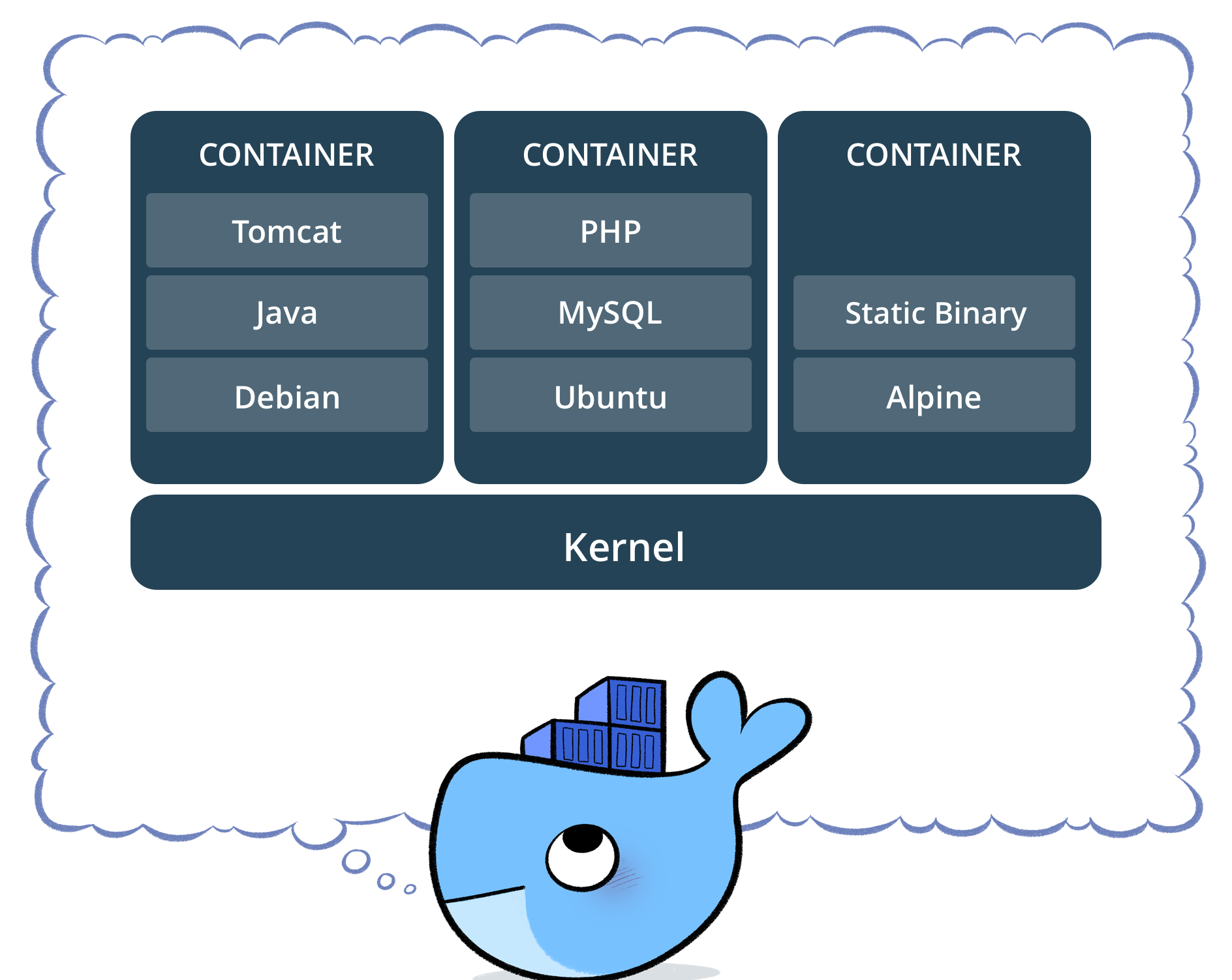
Note
credits to Docker
Introducing main concepts
A container image is a lightweight, stand-alone, executable package of a piece of software that includes everything needed to run it: code, runtime, system tools, system libraries, settings.
Docker containers running on a single machine share that machine’s operating system kernel; they start instantly and use less compute and RAM.
Containers can share a single kernel, and the only information that needs to be in a container image is the executable and its package dependencies, which never need to be installed on the host system.
Multiple containers can run on the same machine and share the OS kernel with other containers, each running as isolated processes in user space.
This tutorial will introduce the use of Docker community edition on Ubuntu 16.04. The same instructions can be applied to CentOS accordingly.
Install Docker CE on Ubuntu
Docker CE is supported on Ubuntu on x86_64 , armhf , s390x (IBM Z), and ppc64le (IBM Power) architectures.
Warning
Make sure to check the OS version as one among supported ones
Show your OS details running:
uname -a
Uninstall old docker versions
if old versions of Docker binary were installed then uninstall them:
sudo apt-get remove docker docker-engine docker.io
Install docker
The package of Docker CE is now called docker-ce. Before doing the installation steps please
make sure that the apt package index has been updated:
sudo apt-get update
Add packages to allow the use of secure http channel:
sudo apt-get install \
    apt-transport-https \
    ca-certificates \
    curl \
    software-properties-common
Add the official GPG key from Docker:
curl -fsSL https://download.docker.com/linux/ubuntu/gpg | sudo apt-key add -
Run the following command to setup the stable repository:
sudo add-apt-repository \
    "deb [arch=amd64] https://download.docker.com/linux/ubuntu \
    $(lsb_release -cs) \
    stable"
Update the package index:
sudo apt-get update
Install the latest version of the binary or a specific version with the command:
sudo apt-get install docker-ce  # latest
sudo apt-get install docker-ce=<VERSION>  # specific
The docker daemon will start automatically.
Add your user to the docker group if you want to run docker command without sudo privileges:
sudo usermod -aG docker $USER
source $HOME/.bashrc
Verify the health of your installation by running the sample hello-world image:
docker run hello-world
The following message has to be displayed if everything is working properly:
Hello from Docker!
This message shows that your installation appears to be working correctly.

To generate this message, Docker took the following steps:
1. The Docker client contacted the Docker daemon.
2. The Docker daemon pulled the "hello-world" image from the Docker Hub.
    (amd64)
3. The Docker daemon created a new container from that image which runs the
    executable that produces the output you are currently reading.
4. The Docker daemon streamed that output to the Docker client, which sent it
    to your terminal.

To try something more ambitious, you can run an Ubuntu container with:
$ docker run -it ubuntu bash